Many students and job seekers need to merge PDF files online free when applying for government jobs. You may have your certificate, marksheet, and photo in separate PDF files. The application form asks for one single PDF. That is where a PDF merger tool saves you.
This guide explains exactly how to combine PDF files in a few simple steps — no software, no sign-up, and no cost. Whether you are on a mobile phone or a computer, this process works for everyone.
Most government job portals like SSC, UPSC, and state PSC boards require documents to be uploaded as a single merged PDF. Uploading separate files is one of the most common reasons for application rejection. Merging your files before upload prevents this mistake.
What Does It Mean to Merge PDF Files?
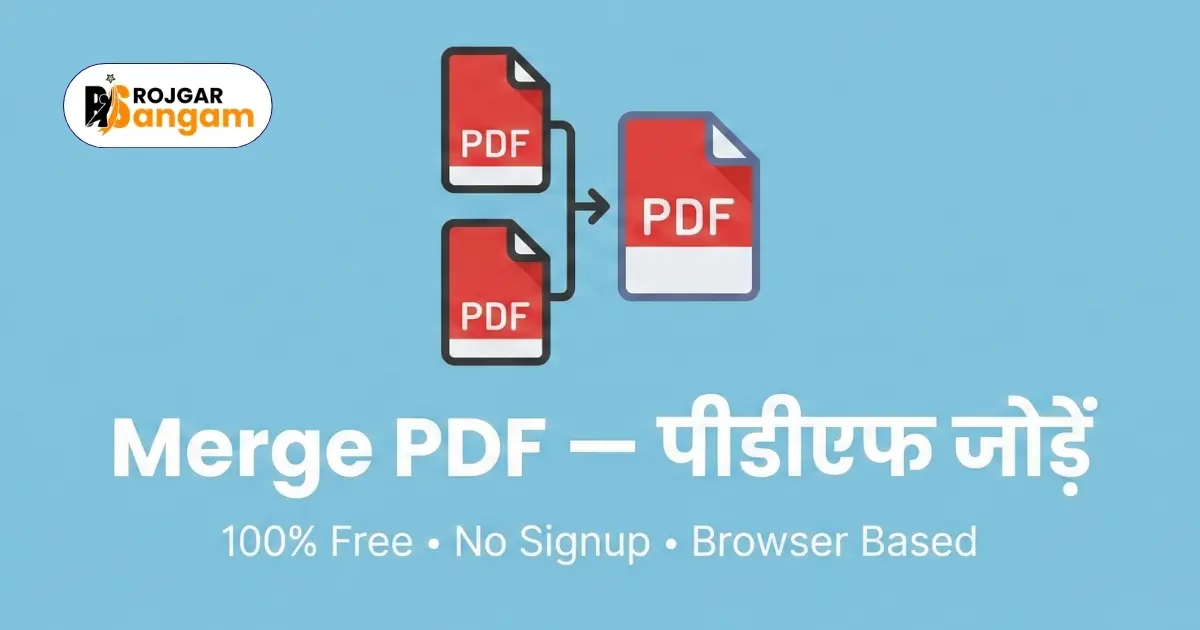
When you merge PDF files, you combine two or more separate PDF documents into one single file. The pages from each file appear in the order you choose. The final merged file looks like one complete document.
For example, you have three files — your degree certificate, your Aadhaar card, and your caste certificate. Each is a separate PDF. After merging, all three become one PDF with multiple pages. You can then upload that single file to any application portal.
Why Do You Need to Combine PDF Files?
There are many practical situations where you need to join PDF pages together. Here are the most common ones for Indian students and job seekers:
- Government job applications that require all documents in a single PDF
- Scholarship forms that ask for certificates and marksheets combined
- College admission portals where multiple documents must be one file
- Sending a complete resume packet with supporting documents by email
- Bank account opening or loan applications that need bundled documents
What Is the Difference Between Merging and Combining PDF Files?
Both terms mean the same thing. Merging PDF files and combining PDF files both refer to joining multiple PDFs into one. Some tools use the word "combine" and others use "merge." The result is identical — one unified PDF document.
How to Merge PDF Files Online Free Using Rojgar Sangam Tools
The Merge PDF tool on Rojgar Sangam Tools is completely free. It runs in your browser. Your files never leave your device. Follow these steps to merge PDF files online free right now.
-
1Open the Merge PDF Tool
Go to tools.rojgarsangam.in/tools/merge-pdf on your browser. The tool opens instantly. No account or login is needed.
-
2Select Your PDF Files
Click the upload button or drag and drop your PDF files into the tool. You can select two or more files at once. The tool accepts all standard PDF files.
-
3Arrange Files in the Right Order
After uploading, you will see a list of your files. Drag them to rearrange the order. The first file in the list will appear first in the merged PDF. Make sure the order matches what your form requires.
-
4Click Merge PDF
Once the order is correct, click the Merge PDF button. The tool processes all files in your browser. This takes only a few seconds depending on file sizes.
-
5Download the Merged File
After merging is complete, a download button appears. Click it to save your merged PDF to your device. Your file is ready to upload to any application portal.
Why Use a Free Online PDF Merger Instead of Software?
Many students ask whether they should download software like Adobe Acrobat to merge PDF online. The answer is no — especially if you are on a basic laptop or phone. Here is why an online tool is better for most users.
No Installation Required
Software like Adobe Acrobat Pro costs thousands of rupees per year. Even free alternatives like LibreOffice require downloading and installing large files. An online PDF merger works directly in your browser. No download, no storage used on your device.
Works on Any Device
Whether you use a Windows laptop, an Android phone, or an iPhone, a browser-based pdf merger free tool works on all of them. You do not need a specific operating system. Just open the browser and go to the tool.
Your Files Stay Private
The Merge PDF tool on Rojgar Sangam Tools processes files locally in your browser. Your documents are never uploaded to a server. No one else can access your files. This is especially important when your PDFs contain Aadhaar numbers, marksheets, or other personal information.
Be careful when using random websites to combine PDF files. Many free PDF tools upload your files to their servers and may store them for weeks. Never upload documents with sensitive personal information — such as your Aadhaar card, PAN card, or bank statements — to any tool that sends files to a remote server. Always use a browser-based tool like Rojgar Sangam Tools that processes files locally on your device.
How to Merge PDF Files Online Free on a Mobile Phone
Most students in India use mobile phones for everything. The good news is that you can merge PDF files online free on your phone just as easily as on a computer.
Steps for Mobile Users
Open Chrome or any browser on your Android or iPhone. Visit the Merge PDF tool. When you tap the upload button, your phone's file manager opens. Select the PDF files you want to combine. After selecting, arrange the order by dragging. Then tap Merge PDF and download the result to your phone's storage.
The downloaded file saves to your Downloads folder automatically. You can then attach it directly from there when filling an online form or sending an email.
What If Your Files Are in WhatsApp?
Many students receive documents on WhatsApp. Before using the merge tool, save those PDFs from WhatsApp to your phone storage. Open WhatsApp, find the document, tap and hold it, then choose "Save to Downloads" or "Share" and save to your phone. After saving, open the Merge PDF tool and select those files.
Common Mistakes to Avoid When Merging PDF Files
Even though the process is simple, students sometimes make small errors that cause problems later. Knowing these mistakes in advance will save you time.
Uploading Files in the Wrong Order
Always check the order of files before merging. If the form asks for your photograph first and certificate second, make sure that is the exact order in the tool. Reversing the order means the examiner sees your documents in the wrong sequence.
Not Checking the Final File Before Uploading
After downloading the merged PDF, always open it and scroll through every page. Confirm that all documents are present and legible. Sometimes a file may be corrupted or a page may appear blank. Checking before submission prevents last-minute problems.
Merging Too Many Large Files
If your individual PDF files are very large — say, 5 MB each — the merged result will also be large. Some portals have a maximum upload size of 2 MB or 5 MB. If your merged file is too big, use the Compress PDF tool to reduce the size after merging.
Merge Your PDF Files Right Now — It's Free
No sign-up. No software. No file upload to any server. Combine your PDFs safely in seconds.
Open Merge PDF ToolFrequently Asked Questions
Is it safe to merge PDF files online?
Yes, it is completely safe when you use Rojgar Sangam Tools. The tool processes your files directly in your browser. Your files are never uploaded to any external server. No one else can see or access your documents.
Can I merge more than two PDF files at once?
Yes. You can select and upload as many PDF files as you need. The tool lets you arrange them in any order before merging. There is no strict limit on the number of files you can combine in a single session.
Do I need to install any software to merge PDF files?
No installation is required at all. Rojgar Sangam Tools is fully browser-based. It works on Chrome, Firefox, Safari, and Edge on any device — mobile, tablet, or desktop computer.
Will the quality of my documents change after merging?
No. The content, text, images, and formatting of each PDF remain exactly the same after merging. The tool only combines the pages — it does not re-compress or alter any content inside the files.
What should I do if the merged PDF file is too large to upload?
After merging, if the file size exceeds the portal's limit, use the Compress PDF tool on Rojgar Sangam Tools. It reduces file size without visible quality loss. Most government portals accept files up to 2 MB or 5 MB, and compression usually brings files well within those limits.