Lakhs of Candidates Lose a Government Job Application Every Year at the Document Verification Stage, Simply Because Their Photo Does Not Match the Format a Board Asks for. One Instruction You Will Find in Many Notifications Reads: Upload a Passport Photo With Your Name and Date of Birth Printed Below It. If You Are Searching for How to Add Name and Date of Birth on Photo Online Free, You Can Finish This Task in Under Two Minutes, Straight From Your Phone or Laptop.
This Guide Walks You Through the Full Process — Why Boards Ask for This Detail, How to Format Your Name and DOB Correctly, and How to Download a Clean File Ready for Upload. You Do Not Need Any Design Skill or App Installation, Because the Name DOB on Photo tool Runs Directly Inside Your Browser, on Mobile or Desktop.
💡Important Information: Some Boards Such as CBSE Ask for the Date the Photograph Was Taken, Not Your Date of Birth — Check the Photo Instruction Line Carefully Before Printing Any Text.
Why Government Portals Ask You to Add Name and DOB on Photo
Recruitment Boards Handle Lakhs of Application Sheets During a Single Exam Cycle, so a Name and Birth Date Printed Directly on the Photo Helps an Official Match the Right Candidate Within Seconds, Without Opening Extra Files.
Portals and Forms That Commonly Require This
Here Is Where You Will Most Often See a Photo With Name and DOB Listed as a Mandatory Upload Requirement:
- Self-Attestation Sheets Submitted Along With Application Printouts
- State Government Recruitment Portals That Mention This in the Photo Upload Instructions
- Offline Application Forms for State Police, Teacher, and Clerical Recruitment
- Admit Cards Where the Candidate Must Paste a Photo and Write Their Name Below It
- Document Verification Rounds Where a Labelled Photo Works as Additional ID Proof
Printed vs Handwritten — What Is Acceptable
Most Notifications Accept Both Handwritten and Printed Text, Yet a Printed Line in a Clean Font Avoids the Blurred or Slanted Handwriting That Officials Sometimes Flag During Manual Checks. The Name DOB on Photo tool Prints Your Details in a Neat, Uniform Style Every Time.
What Happens if You Skip This Step
Skipping This Line Can Cost You an Application — Coast Guard and Similar Boards List a Missing or Mismatched Name Below the Photo Among Their Documented Reasons for Rejection at Verification.
How to Add Name and Date of Birth on Photo Online Free — Step by Step
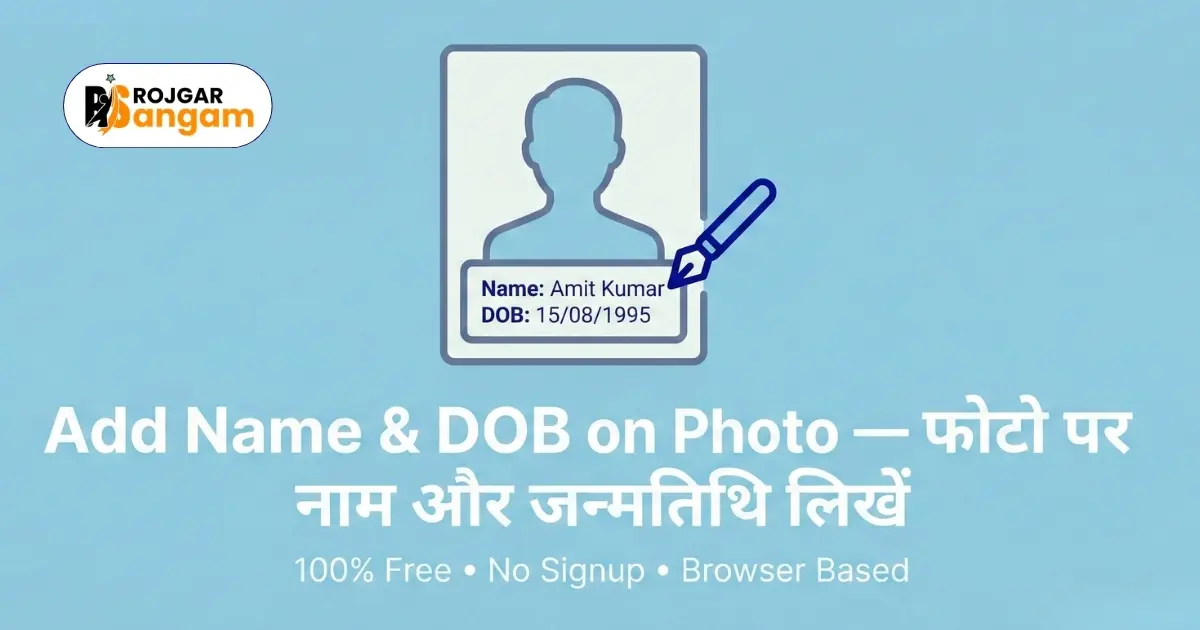
The Name DOB on Photo tool on Rojgar Sangam Tools Lets You Add Your Name and Date of Birth Directly Onto Your Passport Photo. Follow These Steps.
-
1Open the Name DOB on Photo Tool
Go to tools.rojgarsangam.in/tools/name-dob-photo on Your Phone or Computer. No Login, Account, or Payment Is Needed.
-
2Upload Your Passport Photo
Click the Upload Button and Pick Your Passport Photo. Use the Final Version of Your Photo, With a White Background and the Correct Dimensions. The Tool Accepts JPG and PNG Files.
-
3Enter Your Name and Date of Birth
Type Your Full Name Exactly as It Appears on Your Class 10 Certificate. Then Enter Your Date of Birth in the Format the Notification Asks for, Usually DD/MM/YYYY or DD-MM-YYYY. Check Both Fields Twice.
-
4Adjust Text Position and Size
The Tool Places the Text Below the Photo by Default. Change the Font Size if Needed, so the Line Fits Neatly Without Crowding or Spilling Over. Check the Preview Before You Download.
-
5Download and Use
Click Download to Save the Final Image. Your Photo Now Carries Your Name and Date of Birth Printed Cleanly Below It, Ready to Upload to the Portal or Paste on Your Form.
How to Add Name and Date of Birth on Photo Online Free — Getting the Details Right
The Content You Type Matters as Much as the Process Itself. Check These Points Before You Finalise Your Photo.
Name Format — Use Your Full Legal Name
Copy Your Full Name Exactly as It Appears in Your Class 10 or Matriculation Certificate. Skip Short Forms, Nicknames, or Initials Unless the Notification Allows Them. A Certificate That Reads "Rajesh Kumar Sharma" Should Never Turn Into "Rajesh Sharma" on the Photo, Since Even a Small Gap Between the Two Can Raise a Flag at Document Verification.
Date of Birth Format — Match the Notification
Different Portals List Different Date Formats. The Most Common Ones Are:
- DD/MM/YYYY — Example: 15/06/2000
- DD-MM-YYYY — Example: 15-06-2000
- DD Month YYYY — Example: 15 June 2000
Read the Photo Upload Instructions in Your Notification Before You Pick a Format. Use DD/MM/YYYY as the Default When the Notification Does Not Mention Any Specific Style.
Text Colour — Black Is Always Safe
Stick to Black Text on Every Photo You Submit. Every Government Portal and Offline Form Accepts It, and It Stays Readable on Both Light and Dark Clothing. Avoid Red, Blue, or Any Other Shade Unless the Notification Names It Directly.
Add Name and DOB to Your Photo in Seconds
Type Your Name and Date of Birth — the Tool Prints It Cleanly on Your Photo. Free, Private, and It Works on Mobile.
Open Name DOB on Photo ToolPreparing Your Complete Photo Set for Government Applications
Adding Your Name and DOB Usually Comes Last in the Photo Preparation Order. Follow This Sequence for Any Government Job Application.
Step 1 — Get the Right Background
Start With a Photo That Carries a Plain White Background. Swap a Coloured or Outdoor Background for White Using the Remove Background tool, Since a Plain White Backdrop Remains the Most Common Photo Rule Across Indian Government Portals.
Step 2 — Resize to the Correct Dimensions and File Size
Set the Photo to the Pixel Dimensions and KB Limit Given in the Notification Once the Background Looks Right. The Image Resizer tool Lets You Fix the Width, Height, and Maximum File Size Together in One Step.
Step 3 — Add Name and DOB if Required
Add Your Name and Date of Birth Only After the Background and Size Are Both Correct, Using the Name DOB on Photo Tool. Text Added Before Resizing Can Shift Position, so Keep This as Your Final Step Before Download.
Match the Name and Date of Birth on Your Photo With Your Class 10 Certificate and Your Application Form Word for Word. Boards Such as the Indian Coast Guard List a Name or DOB Mismatch With Certificates Among Their Official Reasons for Rejection at Document Verification, and This Applies Even After a Candidate Clears the Written Exam. Give the Text One More Check Before You Download.
Real Problems Candidates Face (and How to Avoid Them)
Careers360 and Similar Forums Show the Same Doubts Coming Up Again and Again Around This Step. These Three Points Cover the Ones Candidates Ask About Most.
- DOB vs Photo Date Confusion: CBSE Private Candidate Forms Ask for the Date the Photo Was Clicked, Not Your Birth Date, While Most Other Boards Want Your Actual DOB. Read the Exact Wording in Your Notification Before You Print Either One.
- Treating This Line as Optional: Several Candidates on Careers360 Uploaded Photos Without Name or DOB, Assuming Boards Would Overlook It, and Their Forms Were Later Withheld or Flagged for Correction. Print the Line Whenever the Notification Mentions It, Even as a Minor Instruction.
- Small Spelling Slips Against the Certificate: A Missing Middle Name or a Swapped Initial on the Photo Compared to the Class 10 Certificate Is a Common, Avoidable Reason for a Flag at Verification. Type the Name Directly From Your Certificate Instead of From Memory.
Frequently Asked Questions
How to add name and date of birth on photo online free?
Open the Name DOB on Photo tool, Upload Your Passport Photo, Type Your Name and Date of Birth in the Fields Given, Check the Preview, Then Download the Final Image. The Text Prints Below Your Photo in a Clean Font. No Software, Login, or Payment Is Needed, and the Whole Process Takes Under Two Minutes.
Why do government job portals ask you to write name and DOB on photo?
Recruitment Boards Handle Lakhs of Forms in a Single Exam Cycle. A Name and Birth Date Printed on the Photo Helps an Official Match the Right Candidate Quickly During Document Verification and Admit Card Checks, Without Opening Extra Files for Every Applicant.
Can I add name and DOB on photo using my mobile phone without any app?
Yes. The Name DOB on Photo tool Opens Inside Any Mobile Browser, Including Chrome and Safari. Upload Your Photo, Add Your Text, and Download the Result Directly on Your Phone. No App Installation Is Needed at Any Step.
What font and text size should I use when adding name and DOB on a passport photo?
Use a Clear Black Font at a Small Size, Roughly 10 to 12 Points on a Standard Passport Photo, so the Text Sits Neatly Below Your Chin Without Touching Your Face. The Name DOB on Photo Tool Sets This by Default, and You Can Still Adjust It Before Downloading.
Should the text on the photo match my ID documents exactly?
Yes. Copy Your Name and Date of Birth Directly From Your Class 10 Certificate Before Typing It on the Photo. Boards List a Name or DOB Mismatch With the Certificate Among the Top Reasons for Rejection at the Document Verification Stage, so a Small Typing Slip Can Cost You the Whole Application.
Should I write my date of birth or the date the photo was taken?
Read the Photo Instruction Line in Your Notification Carefully Before You Decide. Most Portals Ask for Your Date of Birth, but a Few Boards, Including CBSE for Private Candidates, Ask You to Print the Date the Photograph Was Taken Instead. Printing the Wrong Date Under Either Rule Can Get Your Form Withheld.