You have clicked "Submit" on a government job application portal. But the website shows an error — photo size exceeds the limit or dimensions do not match. This is one of the most common problems students face when filling online forms for SSC, Railway, Banking, or state government jobs. Every portal has its own strict rules for photo size and dimensions. Your phone camera photo is never the right size by default.
This guide explains exactly how to resize image online free — without downloading any software and without any cost. Whether you are using a phone or a computer, you can set your photo to the exact size and pixel dimensions required by any government portal. The whole process takes under two minutes.
A photo taken on a modern smartphone is typically 3 to 6 MB in size. Most government job portals only accept photos between 20 KB and 100 KB. Your phone photo may be 60 times larger than what the portal allows. Always resize your photo before uploading to any application form.
Why Government Portals Ask You to Resize Your Photo
Government job portals receive millions of applications every year. Large photo files slow down their servers and create storage problems. That is why every portal sets a strict limit on the file size in KB and the pixel dimensions of uploaded photos.
Understanding KB vs Pixels — Two Different Things
Many students confuse file size with image dimensions. Pixels refer to the width and height of the image — for example, 200 pixels wide and 230 pixels tall. KB (kilobytes) refers to the file size — how much storage space the image takes up on a device.
A portal might say: upload a photo that is 200x230 pixels and under 50 KB. You need to meet both requirements. Adjusting only the pixels without reducing the KB — or reducing only the KB without fixing the dimensions — will still cause an upload error.
Common Photo Requirements Across Major Indian Portals
Here are the typical photo requirements for major government recruitment portals. Always verify from the official notification before uploading — these figures can change.
- SSC (Staff Selection Commission): Passport photo — 4 KB to 12 KB, 100x120 pixels (JPG)
- Railway Recruitment Boards: Passport photo — 15 KB to 40 KB, 200x230 pixels (JPG)
- IBPS Banking Exams: Passport photo — 20 KB to 50 KB, 200x230 pixels (JPG)
- State PSC Portals: Passport photo — 10 KB to 100 KB (varies by state)
- Signature Upload: Usually 10 KB to 20 KB, 140x60 pixels (JPG)
How to Resize Image Online Free — Step by Step Guide
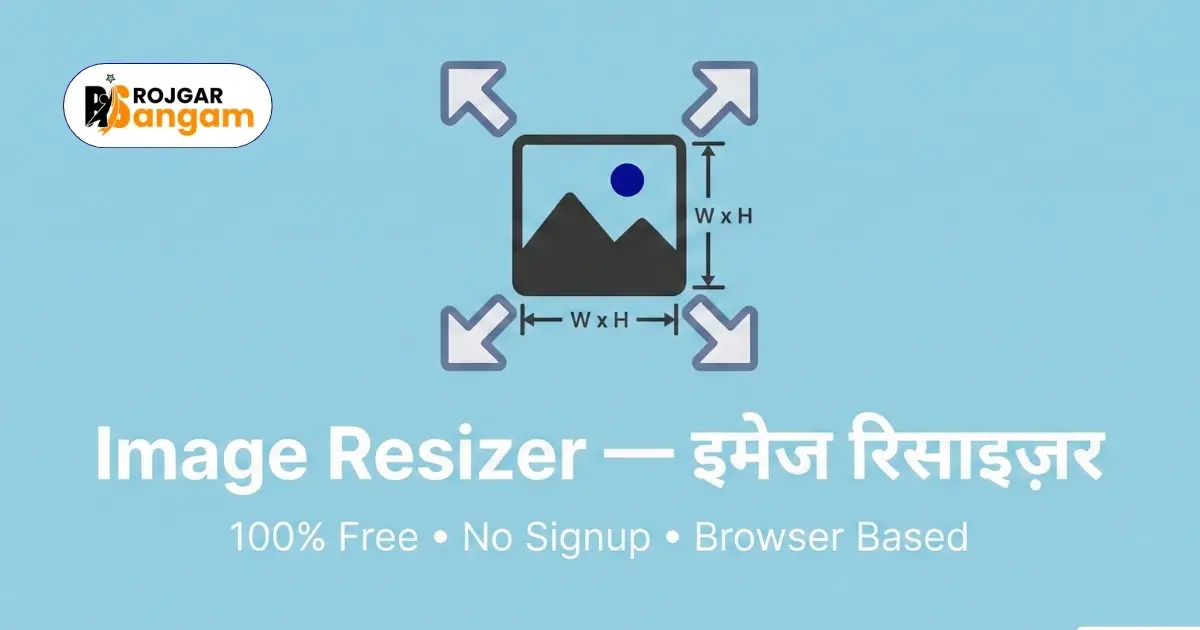
The Image Resizer tool on Rojgar Sangam Tools lets you control both pixel dimensions and file size in KB at the same time. Here is how to use it.
-
1Open the Image Resizer Tool
Go to tools.rojgarsangam.in/tools/image-resizer on your phone or computer. No login or account is required. The tool loads directly in your browser.
-
2Upload Your Passport Photo
Click the upload area and select your photo from your device. The tool accepts JPG, JPEG, and PNG formats. Your file never leaves your device — everything is processed locally in the browser.
-
3Enter the Required Width, Height, and File Size
Check the job notification for the exact requirements. Type the width and height in pixels. Then enter the maximum file size in KB. The tool automatically compresses the image to fit within your target size.
-
4Preview the Resized Photo
A preview of your resized photo appears on screen. Check that your face is fully visible, nothing is cropped, and the image looks clear. If satisfied, proceed to the next step.
-
5Download and Upload to the Portal
Click the Download button. Your resized photo is saved to your device with the exact dimensions and file size you specified. You can now upload it directly to the government job portal.
How to Resize Image Online Free Without Losing Quality
The most common concern is that resizing will make the photo blurry or unrecognisable. Here is how to get a clean, clear result every time.
Always Start With a Good Original Photo
The quality of your resized photo depends entirely on the original. Use a photo taken in proper lighting against a plain white or light-coloured background. Avoid blurry, dark, or low-resolution originals. Resizing cannot fix a poor-quality photo — it can only change its size.
Avoid Over-Compressing the File
When you reduce the file size in KB, you are compressing the image data. Compressing too aggressively removes detail and makes the photo look grainy or pixelated. For most government portals, you do not need to go below 20 KB. If the portal allows up to 50 KB, aim for 30 to 40 KB. This keeps the photo quality sharp while staying within the upload limit.
Enter the Exact Dimensions — Do Not Guess
A passport photo has a specific aspect ratio. If you enter incorrect dimensions, your face will appear stretched or squashed. Always use the exact pixel values from the official notification. The Image Resizer tool allows you to enter custom width and height values independently — use this to match the portal's exact requirement.
Resize Your Photo for Any Government Form
Set exact pixels and KB in one step. Works on mobile. Free and private — no software needed.
Open Image Resizer ToolWhat Else You Need to Prepare Along With Your Photo
Resizing your photo is often just one part of preparing your complete application. Here is what else you may need to do.
Resize Your Signature Image Separately
Most portals that ask for a passport photo also require a scanned signature. The signature has different size requirements — typically smaller dimensions and a lower KB limit, such as 140x60 pixels under 20 KB. Use the same image resizer tool for your signature. The process is identical to resizing a photo.
Combine Photos Into PDF If Required
Some portals ask you to submit all documents as a single PDF. After resizing your photos and signature, use the JPG to PDF tool to merge all your images into one PDF file. This is especially useful for state government portals that ask for a combined document upload.
Verify Everything Before Final Submission
Re-read the official notification one last time before clicking Submit. Check every document's format, dimensions, and file size. Many portals reject applications automatically if even one file does not meet the stated requirements. Taking an extra five minutes to verify can protect your entire application.
Never use a digitally edited, filtered, or altered photo for a government job application. Many portals now use automated face-matching systems at the document verification stage. If your uploaded photo does not closely match your valid photo ID, your candidature can be cancelled — even after you clear the written examination.
Frequently Asked Questions
How to resize image online free for a government job form?
Go to tools.rojgarsangam.in/tools/image-resizer, upload your passport photo, enter the pixel dimensions and maximum KB as specified in the job notification, then click Resize and download. The process takes under a minute. No software, login, or payment is needed.
What is the standard photo size for most government job applications in India?
Most government portals ask for a passport-size photo between 20 KB and 50 KB with dimensions around 200x230 pixels. However, SSC portals can ask for as little as 4 KB to 12 KB. The requirement differs for every recruitment board. Always refer to the specific notification — never assume the same size works everywhere.
What is the difference between resizing and compressing an image?
Resizing changes the physical dimensions of an image in pixels — making it smaller or larger. Compressing reduces the file size in KB without necessarily changing the pixel dimensions. For government job forms, you typically need to do both — set the correct dimensions and bring the file size within the KB limit. The Image Resizer on Rojgar Sangam Tools handles both operations in a single step.
Can I resize a photo on my mobile phone without installing any app?
Yes. The Image Resizer on Rojgar Sangam Tools works entirely in your mobile browser. Open tools.rojgarsangam.in/tools/image-resizer in Chrome or any browser on your Android or iPhone. Upload your photo, set the required size, and download the result. No app needs to be installed on your phone.
Will resizing my photo make it look blurry or unclear?
Reducing dimensions does remove some pixel detail, but for government portal uploads the output is perfectly acceptable. The photo will still look clear and recognisable. To preserve maximum quality, avoid compressing too aggressively. If the portal allows up to 50 KB, do not compress below 20 KB unless the notification specifically requires it.