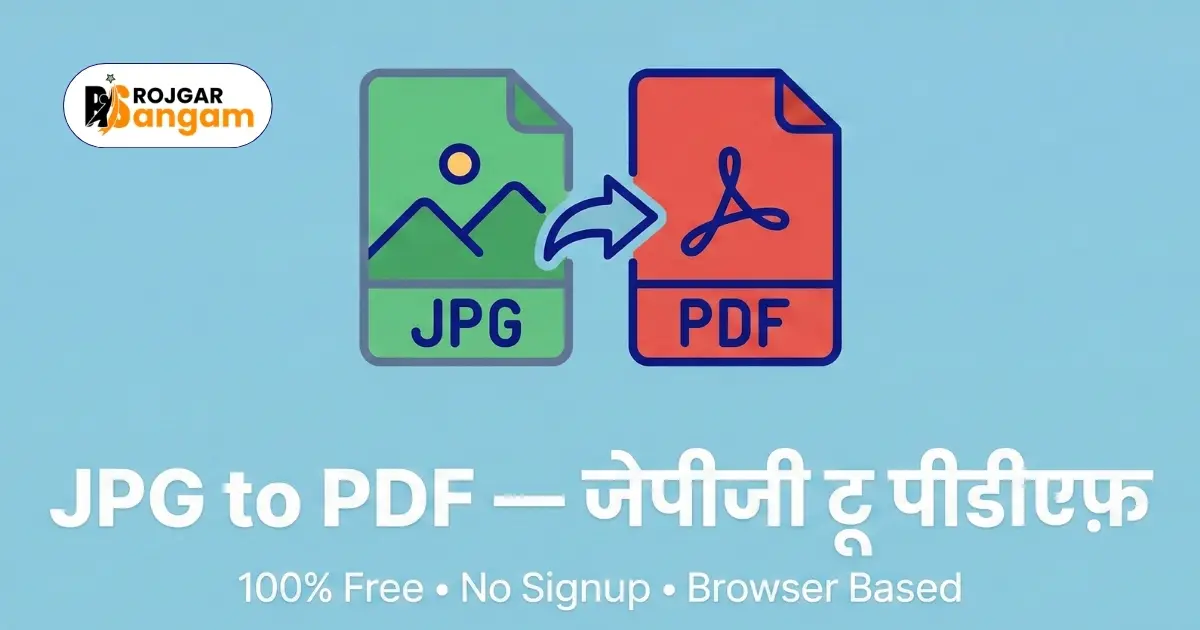
You clicked a photo of your certificate or marksheet using your phone camera. The government portal is asking you to upload it as a PDF. Your photo is saved as a JPG file. You are not sure how to convert JPG to PDF online free without using any paid app or software. This is one of the most common problems students face during government job applications.
This guide explains how to convert JPG to PDF online free — step by step. You will use the free JPG to PDF converter on Rojgar Sangam Tools. It works on any device — mobile, tablet, or computer. No installation. No sign-up. No cost at all.
Most government job portals, universities, and scholarship forms require documents in PDF format — not JPG. A PDF file is easier to view, harder to tamper with, and maintains consistent formatting on every device. Converting your photo to PDF before uploading always gives a more professional and accepted submission.
Why You Need to Convert JPG to PDF Online Free
A JPG file is an image. It cannot be opened as a document by every system. PDF is a universal document format. Every government portal, college, and employer accepts PDF. When a portal says "upload your certificate", it almost always means in PDF format.
Submitting a JPG file instead of a PDF can lead to rejection. Some portals do not even show an upload option for JPG files. Converting your image to PDF takes only a few seconds and solves this problem completely.
Common Uses of JPG to PDF Conversion
- Uploading a phone photo of your degree certificate to a job portal
- Submitting a clicked photo of your Aadhaar card as a PDF document
- Converting a scanned class 10 or class 12 marksheet photo to PDF
- Combining multiple certificate photos into a single PDF file
- Turning your caste certificate or income certificate photo into a proper PDF
- Submitting a photo of a handwritten form or signed declaration as PDF
JPG vs PDF — What is the Difference?
A JPG file is a compressed image file. It can be resized, cropped, and edited easily. A PDF file is a fixed-layout document. It looks the same on every device. Government portals prefer PDF because it is stable, secure, and cannot be accidentally edited. Converting your JPEG to PDF gives your document a professional, submission-ready format.
How to Convert JPG to PDF Online Free — Step by Step
Follow these simple steps to convert your JPG image to PDF using Rojgar Sangam Tools. The entire process takes under a minute.
-
1Open the JPG to PDF Tool
Go to tools.rojgarsangam.in/tools/jpg-to-pdf in any browser. The tool opens instantly. No account or login is needed.
-
2Upload Your JPG Image
Click the upload area or drag and drop your JPG or JPEG file. You can also upload multiple images at once if you want to combine them into a single PDF. The tool accepts standard JPG and JPEG formats.
-
3Arrange Images in the Right Order
If you uploaded multiple images, arrange them in the correct order by dragging them. The PDF will follow exactly the sequence you set. This step is important when combining several certificate photos.
-
4Click Convert and Download
Click the Convert to PDF button. Your browser processes the images instantly. Once done, click Download to save the PDF file directly to your device.
-
5Verify the PDF Before Submitting
Open the downloaded PDF. Check that the image is clear, correctly oriented, and all pages are present. Confirm the file is ready before uploading it to any portal or sending it via email.
How to Convert JPG to PDF on Mobile — No App Needed
Almost every student in India clicks certificate photos using their phone. You can convert those JPG photos to PDF directly on your mobile — without downloading any app.
On Android (Chrome Browser)
Open Chrome on your Android phone. Visit tools.rojgarsangam.in/tools/jpg-to-pdf. Tap the upload button. Select your JPG photos from your gallery, WhatsApp folder, or Downloads. Arrange the images if needed. Tap Convert. The PDF downloads directly to your phone storage.
On iPhone (Safari Browser)
Open Safari on your iPhone. Go to the JPG to PDF tool on Rojgar Sangam Tools. Tap to upload and select images from your Photos app or Files app. After arranging them, tap Convert. Your PDF will be saved to your Downloads folder and can be shared directly from there.
Converting WhatsApp Photos to PDF
Many students receive scanned documents on WhatsApp. These are saved as JPG files in your phone gallery. Open the JPG to PDF tool in your browser. Tap upload and browse to your WhatsApp Images folder. Select the photo and convert it to PDF in seconds. This is the fastest way to prepare a WhatsApp-received certificate for official submission.
Before converting, make sure your JPG photo is clear and fully readable. Blurry, dark, or cropped images will produce a poor-quality PDF that may be rejected by portals or officials. Take a fresh photo in good lighting if your image is not clear. Also check the file size of the converted PDF — if it is too large for the portal limit, use the free Compress PDF tool to reduce the size after conversion.
Tips for Taking Good Photos Before Converting to PDF
A good JPG photo produces a good PDF. These tips will help you take clear, submission-ready photos of your documents.
Use Good Lighting
Place your document near a window in natural light. Avoid taking photos under yellow tube lights — they cause uneven shadows on the document. Natural daylight produces the clearest and most readable photos. Avoid using flash as it creates glare on the paper.
Keep the Camera Straight
Hold your phone directly above the document. Do not tilt or angle the camera. A straight, top-down shot ensures all four corners of the document are visible and the text is not distorted. If your phone has a document scanner mode, use it for even better results.
Check the Image Before Converting
After taking the photo, zoom in and read the text. Make sure all words are sharp and legible. Check that the document is not cut off at any edge. If anything looks unclear, take the photo again before converting it to PDF.
What to Do After Converting JPG to PDF
Your PDF is ready. Depending on your requirement, here are the next steps.
- File too large for portal? Use the Compress PDF tool to reduce the size
- Need to combine with other documents? Use the Merge PDF tool to join multiple PDFs
- Need to resize your photo first? Use the Image Resizer tool before converting
- Need to attach a photo with a signature? Use the Photo Signature Joiner tool before converting to PDF
Convert Your JPG Photos to PDF Right Now — Free
No app. No account. No watermark. Turn your certificate photos into a PDF in seconds — directly from your browser.
Open JPG to PDF ToolFrequently Asked Questions
Can I convert JPG to PDF online free without any software?
Yes. The JPG to PDF tool on Rojgar Sangam Tools works entirely in your browser. You do not need to install any software or app. Just open the tool, upload your image, and download the PDF — completely free.
Can I convert multiple JPG images into one PDF file?
Yes. You can upload multiple JPG images at once and combine them all into a single PDF. After uploading, arrange the images in the order you want. The final PDF will contain all your images as separate pages in that sequence.
Will the quality of my photo reduce after converting JPG to PDF?
No. The converter preserves the original quality of your image. The photo in the PDF output will look exactly the same as your original JPG file — no blurring, no quality loss during conversion.
Is it safe to upload my photos to convert them online?
Your images are processed entirely inside your browser. They are never uploaded to any external server. Rojgar Sangam Tools does not store or access your files. Your personal photos stay completely private on your own device.
Can I convert JPG to PDF on my mobile phone?
Yes. The tool works on all mobile browsers. Open it in Chrome on Android or Safari on iPhone. Select your photos directly from your gallery and download the converted PDF to your phone — without installing any app.