You prepared your application letter or resume in Microsoft Word. Now the government portal is asking for a PDF file. You do not have Microsoft Office installed. You do not know how to convert Word to PDF online free. This is a very common situation for students applying to government jobs across India.
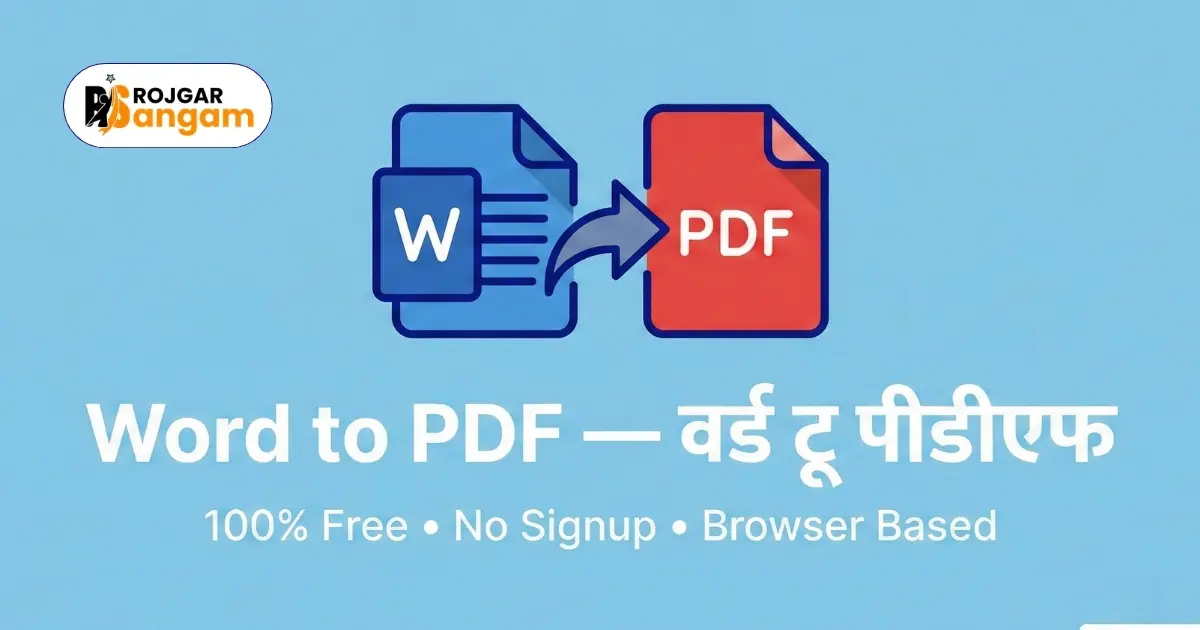
This guide explains how to convert Word to PDF online free — step by step. You will use Rojgar Sangam Tools, a free browser-based converter that works on any device. No software installation. No account. No charges. Your DOCX to PDF conversion happens in seconds.
A PDF file looks identical on every device — whether it is opened on a mobile phone, tablet, or computer. When you submit a Word document instead of a PDF, the formatting may break on the reviewer's device. Always convert your Word document to PDF before submitting any government job application or official document.
Why You Need to Convert Word to PDF Online Free
Many students wonder why PDF is required when their document is already ready in Word format. The reason is simple — PDF files cannot be accidentally edited. They look the same on every device. Government portals, universities, and employers all prefer PDF for this reason.
Converting your Word document to PDF also locks your formatting. Tables stay aligned. Fonts remain correct. Page breaks stay in place. None of this is guaranteed when you send a raw DOCX file.
Common Situations Where You Need a PDF
- Uploading a resume or bio-data to a government job portal
- Submitting a typed application letter for a scholarship or exam
- Sending a No Objection Certificate or experience letter by email
- Uploading a typed affidavit or declaration for an admission form
- Sharing a project report or assignment with a college or university
What Happens If You Submit a Word File Instead of PDF
If a portal specifically asks for PDF and you upload a DOCX file, your application may be rejected outright. Even if the portal accepts it, the formatting may appear broken on the reviewer's screen. Fonts may change. Tables may shift. Bold text may disappear. A PDF prevents all of these problems.
How to Convert Word to PDF Online Free — Step by Step
Follow these simple steps to convert your Word document to PDF using Rojgar Sangam Tools. The process takes less than a minute.
-
1Open the Word to PDF Tool
Visit tools.rojgarsangam.in/tools/word-to-pdf in any browser. The tool loads immediately. No sign-up or login is required.
-
2Upload Your Word Document
Click the upload area or drag and drop your .doc or .docx file. The tool accepts both older .doc format and the newer .docx format used by modern versions of Microsoft Word.
-
3Wait for Conversion to Complete
The tool processes your file automatically. Conversion takes just a few seconds depending on the size of your document. You do not need to click anything extra during this step.
-
4Download Your PDF File
Once the conversion is done, click the Download PDF button. Your converted file saves directly to your device. Open it to verify that all content and formatting looks correct.
-
5Check the PDF Before Submitting
Open the downloaded PDF and scroll through every page. Check that fonts, headings, tables, and page numbers are all intact. Only submit it after confirming the output is correct.
How to Convert Word to PDF Online Free on Mobile
Most students in India use their smartphones for filling forms and uploading documents. You can convert Word to PDF free on your mobile browser without downloading any app.
On Android (Chrome)
Open Google Chrome on your Android phone. Go to tools.rojgarsangam.in/tools/word-to-pdf. Tap the upload area and pick your .docx file from your phone storage, WhatsApp downloads, or Google Drive. The tool converts it instantly. Tap Download to save the PDF to your phone.
On iPhone (Safari)
Open Safari on your iPhone or iPad. Navigate to the Word to PDF tool on Rojgar Sangam Tools. Tap to upload your file from the Files app or iCloud Drive. After conversion, tap Download. Your PDF will be saved in your Downloads folder and can be shared directly from there.
Before uploading your Word file, make sure it is fully complete and error-free. Once converted to PDF, you cannot edit the content. If you discover a mistake after conversion, you will need to fix your Word file and convert it again. Also check that the file size of the PDF is within the upload limit of the portal you are submitting to. If the size is too large, use the free Compress PDF tool to reduce it.
Tips for Getting the Best Word to PDF Conversion
A few small things can make your converted PDF much cleaner and more professional.
Use Standard Fonts in Your Word File
Use common fonts like Arial, Times New Roman, or Calibri in your Word document. Unusual or decorative fonts may not convert correctly to PDF. Stick to standard fonts to ensure the output looks exactly as intended.
Set Correct Page Margins Before Converting
Incorrect margins in your Word file will carry over to the PDF. Before converting, check that your margins are set correctly — typically 1 inch on all sides is the standard. This ensures your content is not cut off at the edges in the final PDF.
Remove Tracked Changes and Comments
If your Word document has tracked changes or review comments enabled, accept or reject all changes before converting. Otherwise those edits may appear in the PDF output. Go to Review in Word and accept all changes before saving the file.
What to Do After Converting Word to PDF
Your PDF is ready. Here are the next steps depending on what you need to do with it.
- File size too large? Use the Compress PDF tool to reduce it before uploading
- Need to combine with other documents? Use the Merge PDF tool to join multiple files into one
- Need only specific pages from the PDF? Use the Split PDF tool to extract the pages you need
- Need to attach a photo to the form? Use the JPG to PDF tool to convert and prepare your image
Convert Your Word File to PDF Right Now — Free
No software. No account. No watermark. Convert DOCX to PDF in seconds directly from your browser.
Open Word to PDF ToolFrequently Asked Questions
Can I convert Word to PDF online free without Microsoft Office?
Yes. You do not need Microsoft Office at all. The Word to PDF tool on Rojgar Sangam Tools converts your .doc or .docx file directly in your browser. No software installation is required at any stage.
Will my formatting stay the same after converting Word to PDF?
Yes. The converter preserves your text, fonts, tables, headings, and page layout exactly as they appear in your Word document. The PDF output will look identical to your original file.
Is it safe to upload my Word document to convert it online?
Your document is processed entirely inside your browser. It is never sent to any external server. Rojgar Sangam Tools does not store, read, or share your files. Your documents remain completely private on your own device.
Can I convert a DOCX file to PDF on my mobile phone?
Yes. The tool works on all mobile browsers. Open it in Chrome on Android or Safari on iPhone. Upload your DOCX file and download the converted PDF directly to your phone — without installing any app.
Why do government portals ask for PDF instead of Word documents?
PDF files look the same on every device and cannot be edited accidentally. Government portals prefer PDF because it keeps the formatting fixed and ensures your document appears exactly as you intended, regardless of the device used to open it.