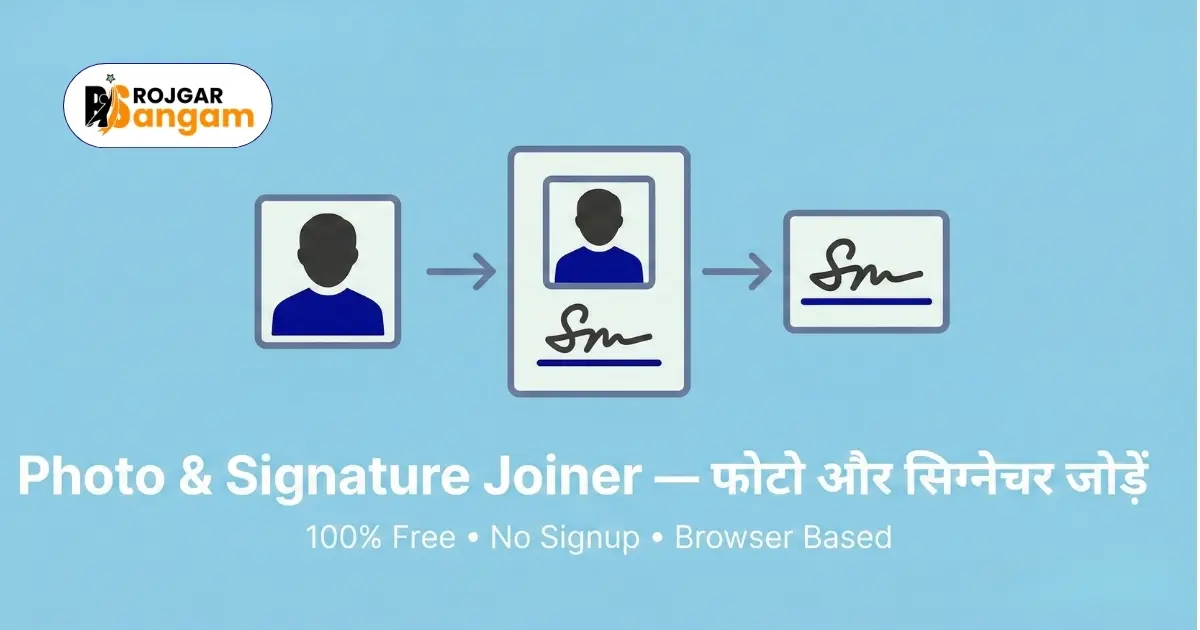
You are filling a government job application and the upload section asks for a single image file containing both your passport photo and your signature side by side. Many students do not know how to create this combined image. They try to use MS Paint, WhatsApp editing, or complex photo apps — and end up with a distorted or oversized file that the portal rejects. A dedicated photo signature joiner online free tool solves this in under a minute, with no software needed.
This guide explains everything — why portals ask for this combined image, how to prepare each part correctly, and how to create the final file using the Photo Signature Joiner tool on Rojgar Sangam Tools. The result is a clean, properly sized image that meets the requirements of most Indian government recruitment portals. The whole process works on both mobile and desktop.
Several major Indian state government recruitment portals — including those for teacher eligibility tests, state police, and revenue department vacancies — require the passport photo and scanned signature to be uploaded as a single combined JPG image, not as two separate files. Missing this requirement is one of the most common reasons for application form errors.
Why Portals Ask for a Combined Photo and Signature Image
Government portals that require a combined image do so for a practical reason. When admit cards are generated automatically from application data, both the photo and signature need to appear together on the same card. Storing them as a single file simplifies this process for the portal's backend system.
Where You Will See This Requirement
Here are the common situations where a combined photo and signature image is required:
- State government teacher recruitment portals (TET, CTET, state-level)
- State police constable and sub-inspector application forms
- Revenue department and patwari recruitment portals
- Some district-level government vacancy applications
- Offline application forms where both must be pasted in adjacent boxes and scanned together
The Difference Between Separate Uploads and Combined Image Uploads
Most national-level portals like SSC and IBPS ask for the photo and signature as separate uploads. But many state-level portals specifically ask for one combined file. Read the photo upload instructions in the notification carefully. If it says "upload photo and signature in a single image" or "combined image", you need the photo signature joiner.
What Happens If You Upload Two Separate Files
If the portal expects a single combined image and you upload just the passport photo, the signature field will either remain blank or show an error. Some portals allow you to resubmit before the deadline. Others lock the form after the first upload. To avoid this situation, prepare the combined image in advance before you start filling the form.
How to Use Photo Signature Joiner Online Free — Step by Step
The Photo Signature Joiner tool on Rojgar Sangam Tools places your passport photo and signature side by side in a single image. Follow these steps.
-
1Prepare Your Passport Photo
Make sure your passport photo is already resized to the correct pixel dimensions and file size. It should have a white background. Use the Image Resizer tool if you need to adjust the size before joining.
-
2Prepare Your Signature Image
Sign your name on plain white paper using a black or dark blue pen. Scan it or photograph it clearly. The background must be white and the signature clearly visible. Crop it tightly so only the signature is visible with minimal white border.
-
3Open the Photo Signature Joiner Tool
Go to tools.rojgarsangam.in/tools/photo-sign-joiner in your browser. No login or account is required. The tool opens instantly.
-
4Upload Both Images
Upload your passport photo in the photo field and your signature image in the signature field. The tool places the photo on the left and the signature on the right by default, which matches most portal layouts.
-
5Preview, Adjust, and Download
Check the preview to confirm both images look correct and are properly aligned. If the combined file size is larger than the portal allows, resize your individual images first using the Image Resizer. Then download the final combined JPG image.
How to Prepare the Perfect Signature Image
Your signature is as important as your passport photo. A poor-quality signature image causes upload errors and verification problems. Here is how to get it right the first time.
How to Scan or Photograph Your Signature
Sign your full name on a clean sheet of white A4 paper. Use a black or dark blue ballpoint pen. Do not use a pencil, light-coloured ink, or a gel pen that smudges. If you have access to a scanner, scan at 150 to 200 DPI. If you do not have a scanner, photograph the paper in bright natural light — avoid shadows falling across the signature.
Cropping the Signature Correctly
After scanning or photographing, crop the image so only the signature is visible. Remove all excess white space around it — but leave a small, even border of about 5 to 10 pixels on all sides. A signature that is cropped too tightly looks unprofessional. One that has too much white space wastes pixel area and may push the text beyond the expected dimensions.
Common Signature Size Requirements
Most government portals ask for a signature image with these approximate specifications:
- Dimensions: 140 pixels wide × 60 pixels tall (or similar)
- File size: Under 20 KB in JPG format
- Background: Plain white
- Ink colour: Black or dark blue
Always confirm the exact requirement from the specific notification before resizing. Use the Image Resizer tool to set the exact dimensions and file size for your signature image before joining.
Merge Your Photo and Signature in Seconds
Upload both images and download a ready-to-use combined file. Free, private, works on mobile.
Open Photo Signature Joiner ToolCommon Mistakes to Avoid When Creating a Combined Image
Many students create the combined image incorrectly and face upload errors. Here are the most frequent mistakes and how to avoid them.
Using the Wrong Layout — Photo and Signature Positions
Most portals expect the photo on the left and the signature on the right. A few portals specify the opposite. Always check the notification or the upload instructions on the portal itself. Some portals even show a sample combined image to guide you. Follow that sample exactly.
Ignoring the Combined File Size Limit
Even if your individual photo and signature images are within their own size limits, the combined image may exceed the portal's upload limit. A common combined image limit is 100 KB. If your combined file is too large, reduce the file size of each individual image first using the Image Resizer, then create the combined image again.
Using a Transparent Background on the Signature
If your signature image has a transparent background (PNG with transparency), the combined image may show a grey or chequered background in the signature area. Always use a white background for your signature image. Convert it to JPG format with a white background before uploading to the joiner tool.
Do not use a digital or typed signature for government job applications. Your signature must be your original handwritten signature — the same one you use on your ID proofs and bank documents. Using a different signature on the application compared to your ID documents will be flagged during document verification. Candidates have been disqualified for signature mismatches at verification stages even after clearing examinations.
Frequently Asked Questions
How to use photo signature joiner online free?
Go to tools.rojgarsangam.in/tools/photo-sign-joiner, upload your passport photo and scanned signature image, preview the combined result, and download it. The tool is completely free, works in any browser, and does not require any software installation or login.
Why do government portals ask for a combined photo and signature image?
Portals that require a combined image use it to automatically generate admit cards and verification sheets with both the candidate's photo and signature in the correct positions. It simplifies the backend document processing for large-scale recruitment drives. Some portals also use the combined image during manual verification to cross-check both identity markers together.
What size should the combined photo and signature image be?
The size requirement varies by portal. A common requirement is a combined JPG image under 100 KB. The photo portion is typically around 200x230 pixels and the signature around 140x60 pixels. Always check the specific instructions in the official notification. If needed, resize each image individually using the Image Resizer tool before joining them.
Can I use the photo signature joiner on my mobile phone?
Yes. The Photo Signature Joiner tool works in any modern mobile browser. Open it on Chrome or Safari on your Android or iPhone, upload both images, and download the combined result. No app needs to be installed. The tool processes everything in your browser and your images stay on your device.
What format should my signature image be in before joining?
Your signature should be scanned or photographed on plain white paper using black or dark blue ink. Save it as a JPG file with a white background. Avoid PNG files with transparency. Crop the image tightly and resize it to the correct pixel dimensions using the Image Resizer before uploading to the joiner tool. The typical requirement is 140x60 pixels under 20 KB.