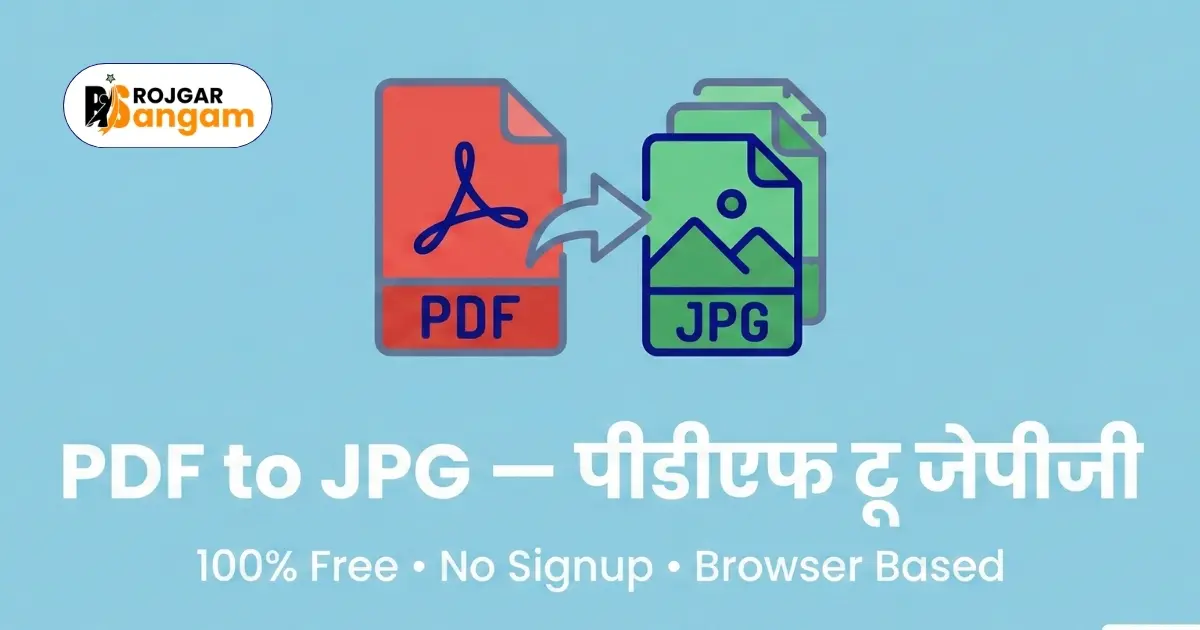
Many students and job seekers face a common problem. They have a PDF file — an admit card, a certificate, or a government document — and they need it as a JPG image. Some portals only accept image uploads. Some WhatsApp forms ask for a photo, not a PDF. Knowing how to convert PDF to JPG online free saves you time and removes a lot of frustration.
This guide explains the entire process in simple steps. You do not need to install any software. You do not need to pay for any subscription. Everything works directly in your browser. By the end of this guide, you will be able to convert any PDF page into a clear JPG image within seconds.
A standard A4 PDF page converted at 150 DPI produces a JPG image of roughly 1240 × 1754 pixels — clear enough for most government portal uploads and WhatsApp document sharing.
Why Do You Need to Convert PDF to JPG?
PDF is a great format for sharing documents. But it is not always accepted everywhere. Many online application portals in India ask you to upload your documents in JPG or JPEG format only. They do not accept PDF uploads.
Common Situations Where JPG is Required
Here are some real situations where you will need a JPG version of your PDF:
- Uploading your admit card photo to a registration portal
- Sharing a scanned certificate on a WhatsApp group or email
- Adding a document image inside a Word file or presentation
- Submitting proof of address or identity on a website that only accepts images
- Creating a thumbnail or preview image from a PDF page
Why Not Just Take a Screenshot?
Many people take a screenshot of their PDF to get an image. This works, but the quality is often poor. The text becomes blurry. The edges get cut off. A proper PDF to JPG converter gives you a clean, high-resolution image with no cropping or distortion.
How to Convert PDF to JPG Online Free — Step by Step
Using the PDF to JPG tool on Rojgar Sangam Tools is quick and straightforward. Follow these steps carefully.
-
1Open the PDF to JPG Tool
Go to tools.rojgarsangam.in/tools/pdf-to-jpg on your mobile or computer browser. No login or account is needed.
-
2Upload Your PDF File
Click the upload button and select your PDF from your device. You can also drag and drop the file directly onto the page. The tool loads your PDF instantly.
-
3Select the Pages You Want to Convert
You will see a preview of all the pages in your PDF. Select the specific pages you need, or choose all pages at once. Each page will become a separate JPG image.
-
4Click Convert and Download
Press the Convert button. Your JPG images are generated immediately. Download them one by one or as a ZIP file if you converted multiple pages.
-
5Use Your JPG Image
Your downloaded JPG file is ready to upload, share, or print. The image is clear and properly sized. No further editing is needed in most cases.
Key Features of the PDF to JPG Converter
Not all online converters are built the same. Here is what makes the Rojgar Sangam Tools PDF to JPG converter reliable for students and job seekers.
Works Entirely in Your Browser
Your PDF file never leaves your device. The conversion happens inside your browser using JavaScript. This means your sensitive documents — like Aadhaar cards, mark sheets, or appointment letters — are never sent to any server. Your privacy is fully protected.
No File Size Restrictions for Most Documents
The tool handles standard government documents, certificates, and admit cards without any trouble. Most application-related PDFs are small in size and convert without any issues.
High-Quality JPG Output
The PDF to image conversion preserves the text sharpness and image clarity of your original PDF. The output JPG is suitable for portal uploads, printing, and sharing.
Completely Free — No Hidden Charges
There is no subscription, no watermark, and no daily limit for normal use. You can convert PDF pages to images as many times as you need without paying anything.
Convert Your PDF to JPG Right Now
No software needed. Works on mobile and desktop. Free forever.
Open PDF to JPG ToolWhen to Use PDF to JPG vs Other PDF Tools
Sometimes you do not need to convert PDF to image. You need a different operation. Here is a quick guide to help you choose the right tool.
Use PDF to JPG When
- A portal only accepts JPG or JPEG uploads
- You need to paste a document page inside a Word file or email
- You want to share a single page from a large PDF without sharing the full document
- You need a thumbnail or cover image from your PDF
Use JPG to PDF When You Need the Opposite
If you have multiple photos that need to be submitted as a single PDF, use the JPG to PDF tool instead. It merges your images into one clean PDF file — useful for uploading multiple certificates together.
Use Compress PDF for Large Files
If your PDF is too large to upload but you still want to keep it as a PDF, use the Compress PDF tool. It reduces the file size without converting the format.
Understanding PDF to JPEG — Common Questions Answered
Many users have doubts about the PDF to JPEG free conversion process. Here are some of the most common points of confusion, explained clearly.
Is JPG the Same as JPEG?
Yes. JPG and JPEG are the same format. JPEG stands for Joint Photographic Experts Group. The shorter name JPG came from older Windows systems that only allowed 3-letter file extensions. Both names refer to the same image format. When a portal asks for a JPEG file, you can upload a JPG file without any problem.
Does Converting PDF to JPG Reduce Quality?
The quality depends on the resolution used during conversion. Our tool uses a good default resolution that keeps text and images sharp. For most government portal uploads, the quality is more than sufficient. If you are printing the image on paper, the quality is also suitable for standard document sizes.
Can I Convert a Scanned PDF to JPG?
Yes. A scanned PDF is essentially a collection of images inside a PDF wrapper. Converting it to JPG simply extracts those images in a standard format. The output will be as clear as the original scan.
Do not use random unknown websites to convert sensitive documents like Aadhaar cards, bank statements, or certificates. Some websites upload your files to their servers and store them. Always use a browser-based tool that processes files locally, like the one on Rojgar Sangam Tools, to protect your personal information.
Tips for Getting the Best Results
A few small things can make your PDF to image conversion even better. Keep these points in mind.
- Use the original PDF, not a screenshot. A screenshot of a PDF is already a low-quality image. Always use the actual PDF file for conversion.
- Check the output before uploading. Open the JPG file on your phone or computer and zoom in to check that text is readable and nothing is cut off.
- Convert only the pages you need. If your PDF has 10 pages but you only need page 3, select only that page. This saves time and keeps your downloads organised.
- Rename your file after downloading. Give the file a clear name like marksheet-page1.jpg before uploading to any portal. This helps you stay organised.
Frequently Asked Questions
How to convert PDF to JPG online free without any software?
Visit tools.rojgarsangam.in/tools/pdf-to-jpg, upload your PDF file, select the pages you need, and click Convert. Your JPG images will be ready to download instantly. No software installation is required. The tool works on any device with a modern browser.
Is it safe to convert PDF to JPG online?
Yes, it is safe when you use Rojgar Sangam Tools. The conversion happens entirely inside your browser. Your PDF file is never uploaded to any external server. This means your personal documents remain private on your own device at all times.
Will the image quality be good after converting PDF to JPG?
Yes. The tool exports JPG images at a high resolution. Text, stamps, signatures, and other details in your PDF remain clear and sharp in the converted image. The output is suitable for portal uploads, printing, and document sharing.
Can I convert a multi-page PDF into separate JPG images?
Yes. Each page of your PDF is converted into a separate JPG image. You can select all pages or specific pages. When multiple pages are converted, you can download them individually or as a ZIP archive depending on the tool options available.
What is the difference between JPG and JPEG?
There is no difference. JPG and JPEG are exactly the same image format. The full name is JPEG — Joint Photographic Experts Group. The file extension was shortened to JPG on older Windows operating systems. If a website asks for a JPEG file, uploading a JPG file will work perfectly.