You have a good passport photo, but the background is blue, grey, or from an outdoor setting. Almost every government job portal in India requires a plain white background. Getting a new photo clicked at a studio costs time and money. Knowing how to remove background from photo online free solves this problem in under a minute — right from your phone or computer.
This guide walks you through the complete process. You will learn how to remove a background from any photo, replace it with white, and make the result ready for government portal uploads. No software installation is needed. No technical skills are required. Everything runs directly in your browser.
Almost all government job portals in India — SSC, Railways, IBPS, UPSC, and state PSC boards — specifically require a passport photo with a plain white background. Even a light grey or off-white background can get your photo rejected at the document verification stage.
Why Government Portals Require a White Background Photo
The white background requirement is not just a formality. It serves a real purpose. Automated face-detection systems used by portal servers work more accurately on photos with a plain white background. The face stands out clearly without any visual noise from a coloured or patterned background.
Portals That Specifically Ask for White Background
Here is a list of major recruitment portals that require a white background passport photo:
- SSC (Staff Selection Commission) — White background, studio-quality photo
- Railway Recruitment Boards (RRB/RRC) — White or light background
- IBPS and Bank PO Exams — White background, recent colour photo
- UPSC Civil Services — White background, formal attire
- State PSC and Police Recruitment Boards — White background, front-facing photo
What Happens If You Upload the Wrong Background
Many students upload photos with a coloured or outdoor background, thinking it will be accepted. Some portals reject the photo automatically at the time of upload. Others flag it during manual document verification — sometimes after you have already cleared the written exam. A small mistake with the background can waste months of preparation.
How to Remove Background from Photo Online Free — Step by Step
The Remove Background tool on Rojgar Sangam Tools uses AI to detect and remove the background from your photo automatically. Follow these steps to get a clean white background photo.
-
1Open the Remove Background Tool
Go to tools.rojgarsangam.in/tools/remove-bg on your phone or computer. No login or account is needed. The tool opens directly in your browser.
-
2Upload Your Passport Photo
Click the upload area and select your photo. The tool accepts JPG, JPEG, and PNG formats. Your photo is processed locally in the browser — it is never sent to any server or stored anywhere.
-
3Let the Tool Remove the Background Automatically
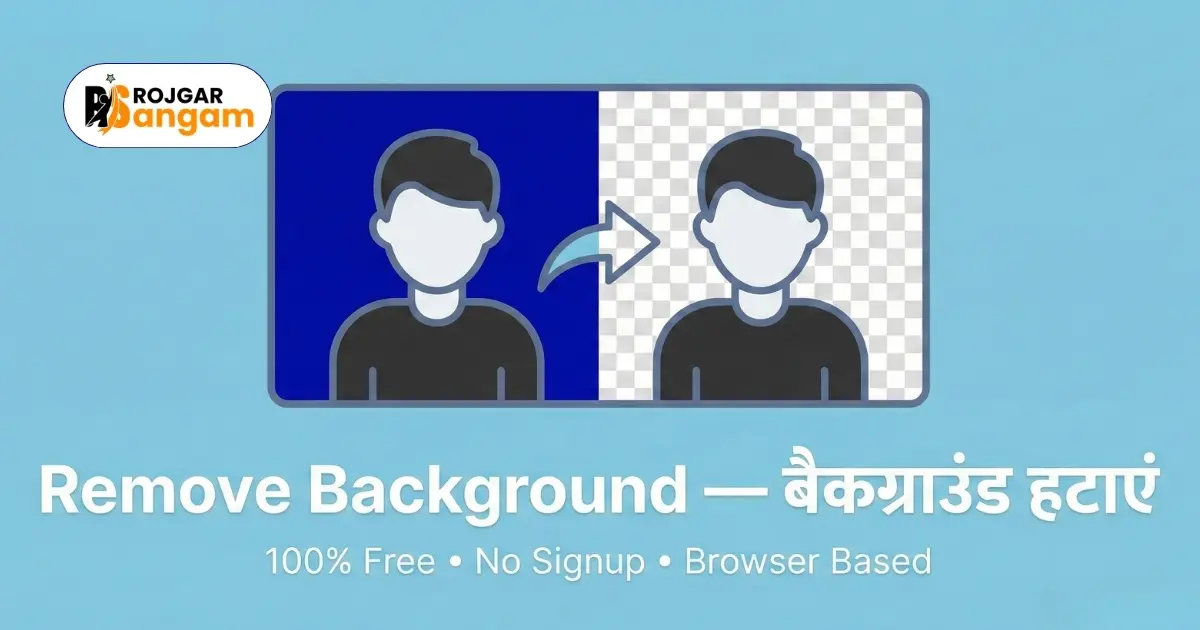
The AI analyses your photo and removes the background within a few seconds. You will see the result with a transparent background. Check that the edges around your face and hair look clean.
-
4Select White as the New Background Colour
Choose white from the background colour options. Your photo now has a clean white background — exactly as required by government portals. Preview the result carefully before downloading.
-
5Download and Resize If Needed
Click Download to save your white background photo. If the portal also requires a specific pixel size and KB limit, use the Image Resizer tool next to set the correct dimensions and file size.
How to Remove Background from Photo Online Free — Tips for Best Results
The quality of the background removal depends on the original photo. A few small things make a big difference in the final result.
Use a Photo With Good Contrast Between You and the Background
AI background removal tools work best when there is a clear visual difference between the subject and the background. If you are wearing a dark outfit against a dark background, the edges may not be detected cleanly. A brightly lit photo against any single-colour background gives the cleanest separation.
Avoid Loose Hair Around the Edges
Very fine or loose hair strands at the edges of the face are the hardest part of any background removal. For a government passport photo, pull your hair back or keep it neatly in place. This gives the AI cleaner edges to work with and produces a more professional result.
Check the Result Before Downloading
Always zoom into the edges of your downloaded photo before uploading it to any government portal. Check that no patches of the old background remain and that the white fill does not bleed into your face or hair. If the result is not clean enough, re-upload a better original photo and try again.
Get a White Background Photo in Seconds
Upload your photo — AI removes the background instantly. Free, private, works on mobile.
Open Remove Background ToolWhat to Do After Removing the Background
Removing the background is one step. After getting your white background photo, you may need to complete a few more tasks before uploading to a government portal.
Resize the Photo to the Required Dimensions and KB
Every portal specifies the exact pixel dimensions and maximum file size in KB for passport photos. After removing the background, use the Image Resizer tool to set the exact width, height, and file size. This is a necessary step — do not skip it. Uploading an oversized photo will cause an error even if the background is correct.
Combine Your Photo and Signature Into a Single File If Needed
Some state government portals ask you to submit a photo and signature side by side in a single image file. After processing your individual photos, you can use the Photo Signature Joiner tool to merge them into one standard image. This saves time and removes the need for any manual editing.
Convert to PDF If the Portal Requires It
A few portals ask for your photo as part of a combined PDF document. Once your photo is ready with the correct white background and dimensions, you can convert it to PDF using the tools available on Rojgar Sangam Tools without any additional software.
Do not use AI-generated or heavily edited photos for government job applications. The photo must be a real, recent photograph of you. Background removal using a tool is completely acceptable — but altering your face, skin tone, or physical features using any filter or editing app is not allowed. Such photos are rejected at document verification and can lead to disqualification of your candidature.
Frequently Asked Questions
How to remove background from photo online free?
Go to tools.rojgarsangam.in/tools/remove-bg, upload your passport photo, and the AI automatically removes the background. Select white as the replacement background colour and download the result. The whole process takes under 30 seconds. No software, account, or payment is needed.
Is a white background required for government job passport photos in India?
Yes. Almost every Indian government recruitment portal — including SSC, Railway, IBPS, UPSC, and state PSC boards — requires a passport photo with a plain white background. Coloured, patterned, or outdoor backgrounds are rejected. Always check the specific notification for the background colour requirement before uploading your photo.
Will the background removal tool work on my mobile phone?
Yes. The Remove Background tool works in any modern mobile browser. Open the tool on Chrome or Safari on your Android or iPhone, upload your photo, and download the result. There is no app to install. The tool runs entirely in your browser on both mobile and desktop devices.
Is it safe to upload my passport photo to this tool?
Yes, it is completely safe. The Remove Background tool on Rojgar Sangam Tools processes your photo directly inside your browser. Your image is never sent to any external server and is not stored or saved anywhere. Your photo and personal information remain private on your own device at all times.
What should I do after removing the background from my photo?
After downloading your white background photo, use the Image Resizer tool to set the exact pixel dimensions and file size in KB as required by the portal. Most government portals accept photos between 20 KB and 50 KB at around 200x230 pixels. Always check the specific recruitment notification for the exact requirements before uploading.